

Version 1.0.0-alpha.1latest
Chapter 1.9
Getting started
The two decisions before you start, what your IT team does, the first run as the first administrator sees it, and a checklist of what to have ready on day one.
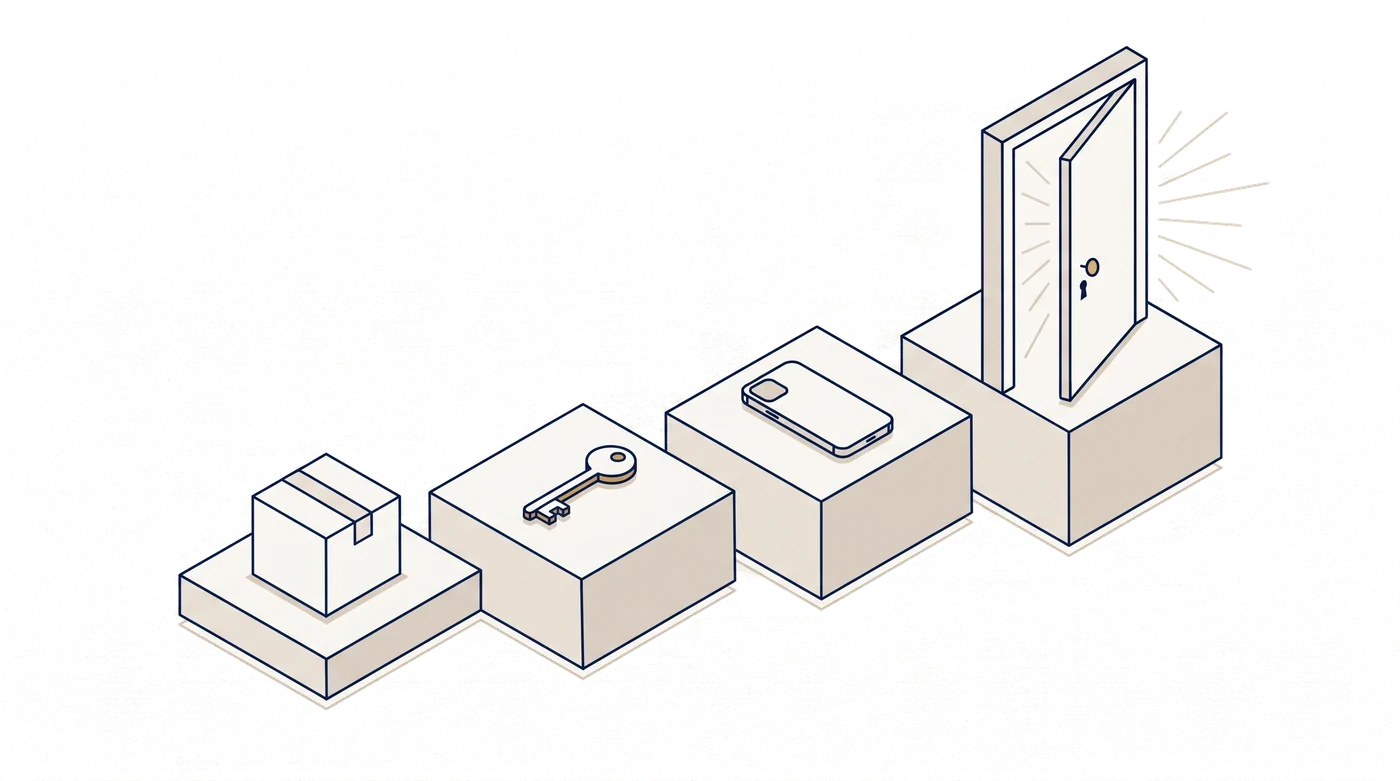
Aoife Brennan's first hour with Harrow Port Authority's new installation went like this. Tomás Reilly, her platform engineer, finished the install and sent her a link with a code in three short groups. She typed the code and compared eight groups of letters on her screen with the eight on his. Then she ticked a box and filled in two short forms. Her laptop asked for a passkey, she touched the fingerprint reader, and she was looking at a Today page that said, honestly, that nothing had happened yet.
There is very little more to a first run than that. This chapter covers the two decisions before it and what IT does, then each step of that hour and the first day after it.
Two decisions first
Which edition. Community is the free, open-source edition for one organisation. Team adds a set of features on Adverant's cloud. Enterprise is licensed feature group by feature group, and it's the edition that runs domain packs and the add-ons, the phone apps among them. Chapter 1.6, Editions and licences in plain terms, sets out what each holds. You can move from Community to Enterprise later and keep everything you already have.
Where it runs. The choices run from Adverant's EU cloud to your own Kubernetes to a site with no internet at all, with cloud stores, appliances and field devices besides. Chapter 1.8, Where Nexus runs, explains each. On Adverant's cloud you sign up and skip straight to the first five minutes, described at the end of this chapter.
What your IT team does
For any installation you run yourself, your IT team does the groundwork. They check the release is genuine and run a preflight check that lists every problem with its fix. Then they install, and make a one-time claim code for the email address of the person who will be the first administrator. Part 2 is written for them. They start at chapter 2.3, Planning an installation, and chapter 2.12, The first run, covers their side of the hand-over.
The claim code lasts 30 minutes and allows five tries. Agree a time with IT, so the person claiming is at a browser when the code arrives.
Claiming the installation
Claiming proves that the browser in front of you is talking to the installation your team just made. Nobody can sign in until it's done.
- Open the claim address IT gives you.
- Type the code into the three boxes, one group in each.
- Compare the fingerprint on the page, eight groups of four characters, with the one IT reads you from their screen, group by group.
- Type the work email address the code was made for.
- Tick the box that says all eight groups match, then press Claim this installation.
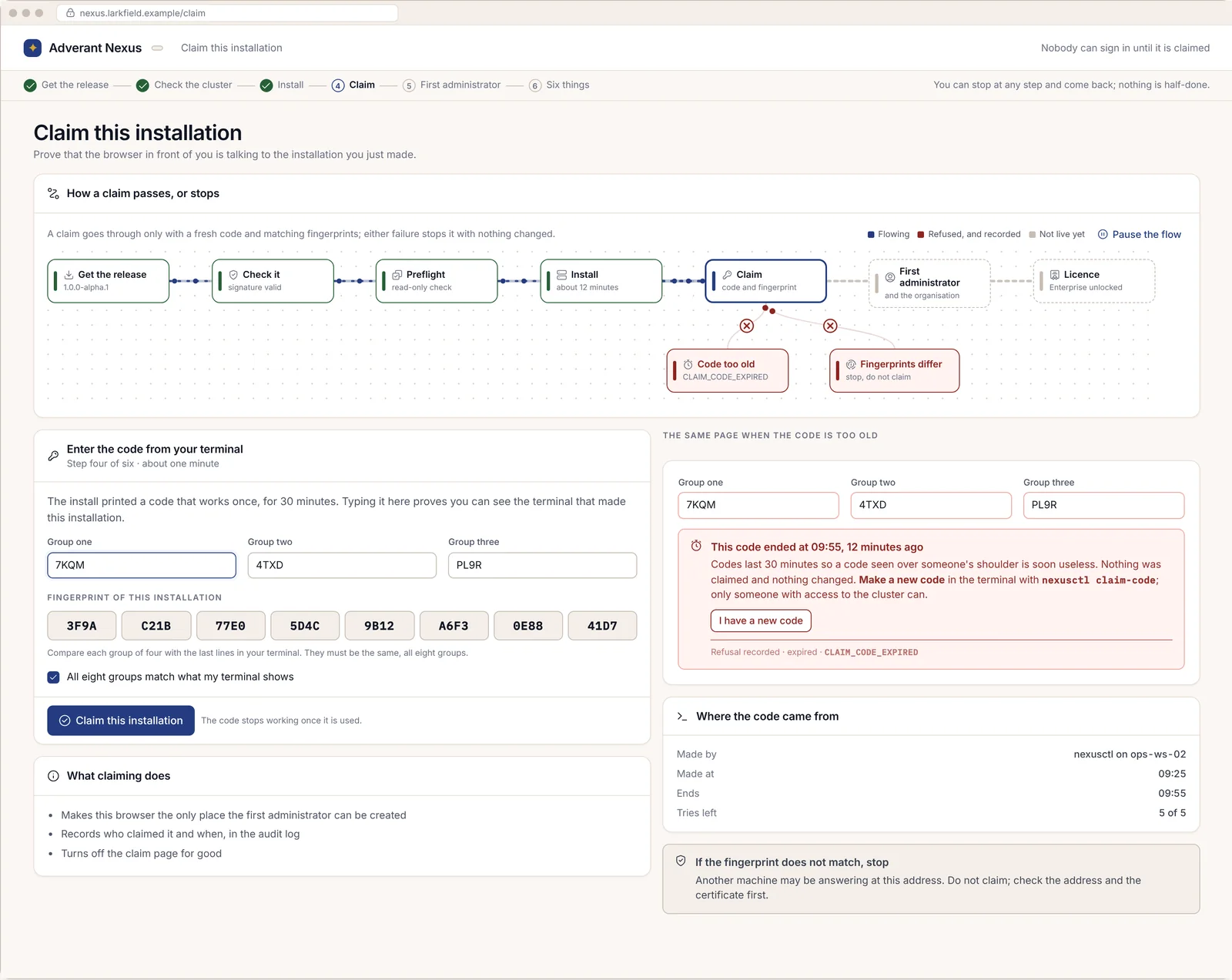
Claiming does three things. It makes this browser the only place the first administrator can be created. It records who claimed and when. And it switches the claim page off for good.
If the code is more than 30 minutes old, the page says so and confirms nothing was changed. Press I have a new code. Ask IT for a fresh one.
The first administrator
Next come two short forms on one page. The first is about you: your full name and work email, plus a password. The first person is always an organisation administrator. The second is about the organisation. It asks for the organisation's name and a short name used in links, then where data is kept, then language and time zone.
Two of those boxes are marked as fixed. The short name appears in every link and export, and it can't change later. Where data is kept can't change either; moving data later means a new installation. Think before you fill them in.
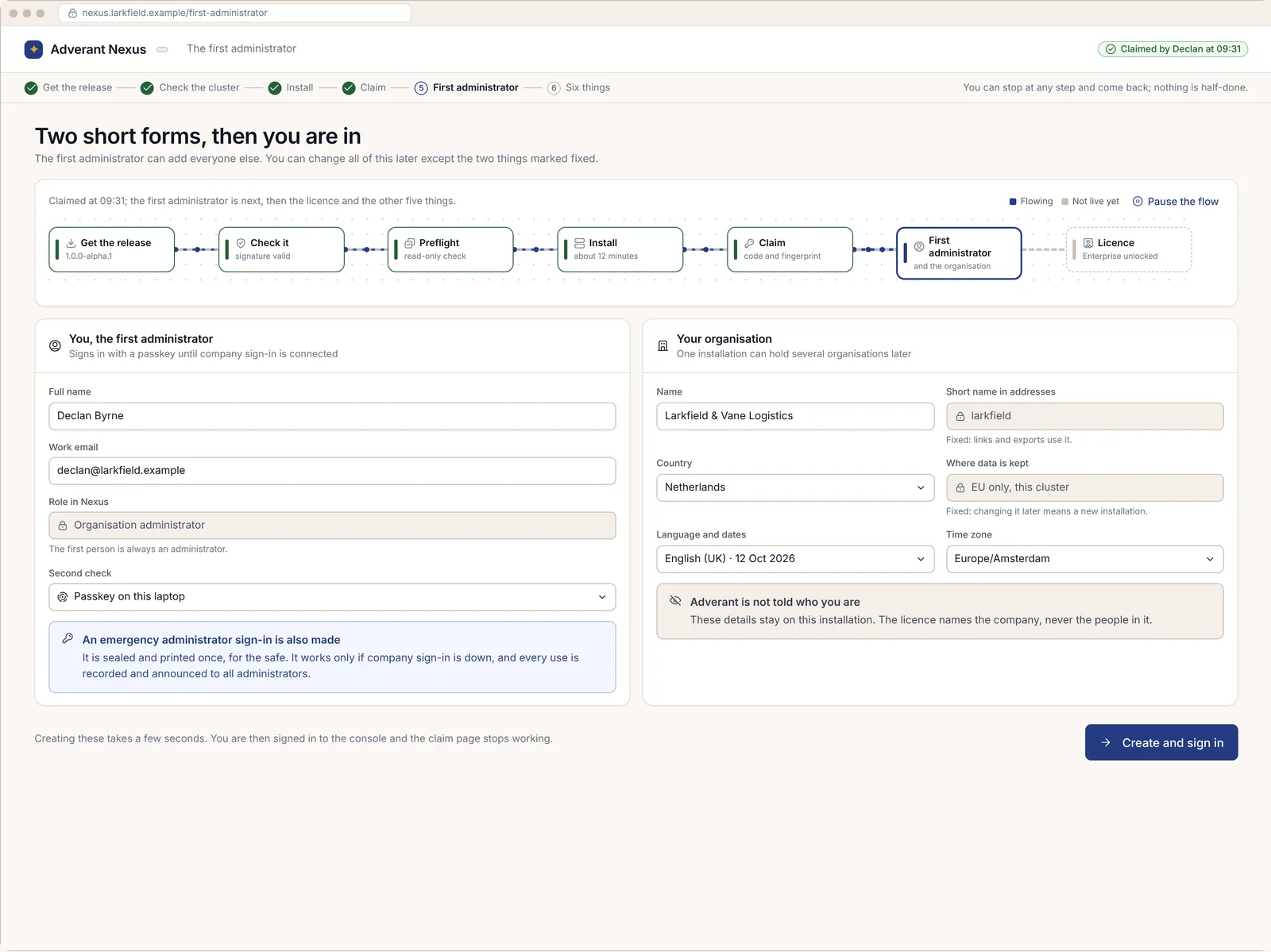
When you press Create and sign in, your computer asks you to make a passkey, a sign-in that uses your fingerprint or face (or your phone) instead of a typed secret. An administrator never signs in with a password alone, so the passkey is the second check every time. If your computer can't make one, the page shows a square code for your phone's camera instead. You have ten minutes in the same browser to finish this step.
Nexus also makes an emergency administrator sign-in at this point. It's sealed and printed once, for the safe. It works only when your company sign-in is down, and every use is recorded and announced to all administrators.
Your first day
Once the passkey is set, you land on Today. On a new installation it doesn't pretend to be busy. Each empty list says what kind of empty it is ("No requests yet") and how to start. The assistant in the side panel says the same thing in a sentence: nothing has happened here yet, and the usual first steps are connecting company sign-in and a model.
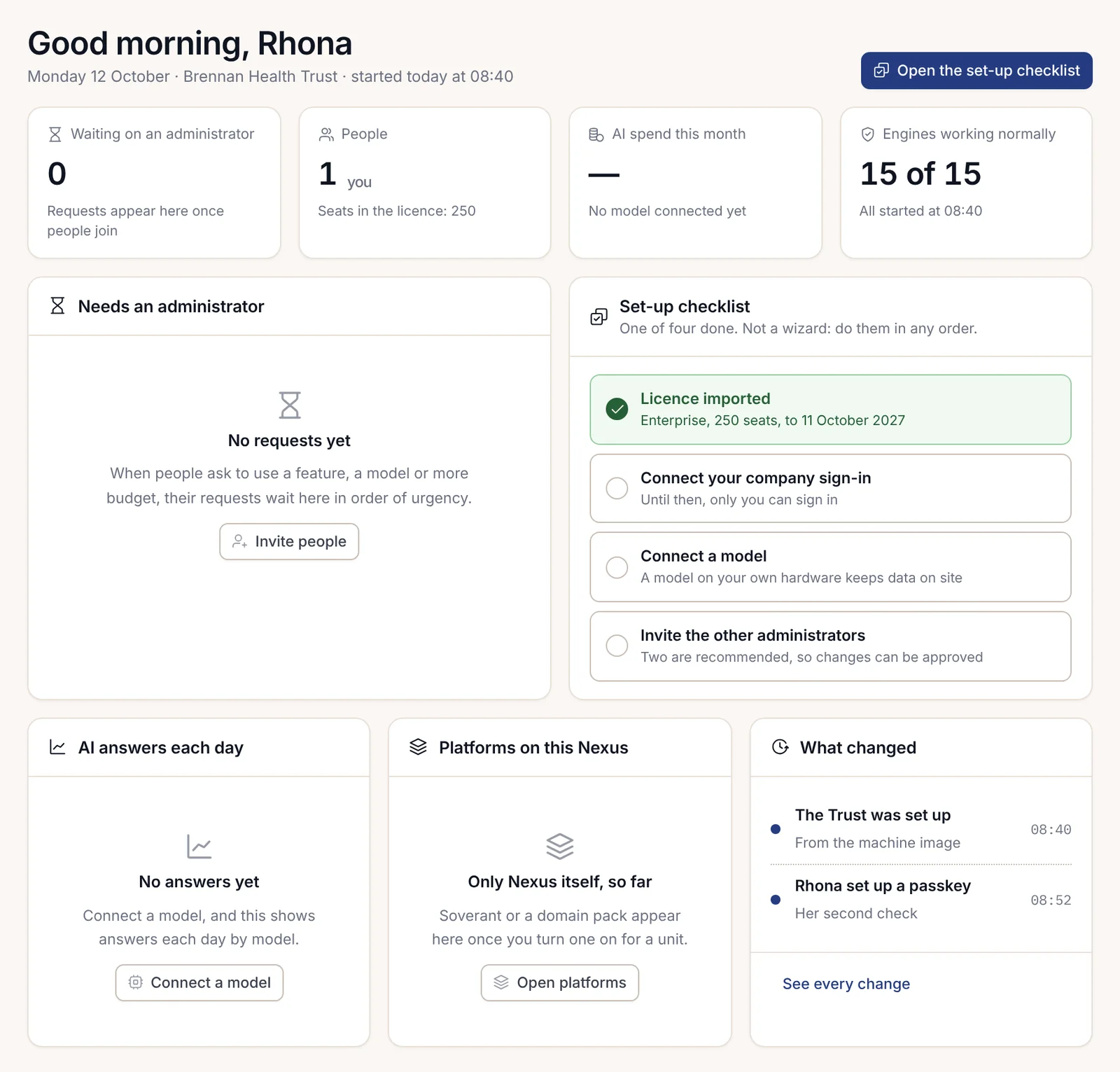
The set-up checklist on Today has four items, and you can do them in any order. Import the licence if you're on Enterprise. Connect your company sign-in and a model. Invite the other administrators. Two other administrators are recommended, because some changes need a second person to approve them.
Behind it sits a page for the installation itself, Six things before anyone signs in. Its six items are the licence and backups, the address and its certificate, company sign-in and mail, and an artificial intelligence (AI) model. Each one shows "true" when it's done. The Invite people button opens when all six are true.
Connecting company sign-in
Most organisations want people to sign in with the accounts they already have. You choose your provider, and Nexus finds most of the settings from the provider's published details. You paste the application's identity and secret, which is never shown again, and press Test sign-in. The result says in plain words what the provider sent and how Nexus will use it. The name of the standard your provider uses sits in small type beside a short gloss.
Community connects one company sign-in through OpenID Connect (OIDC). Enterprise adds Security Assertion Markup Language (SAML) and two more things: you can require company sign-in from a date you choose, after which members' passkeys stop working on their own, and you can copy people and groups from your directory every 15 minutes. Until company sign-in is connected, only you can sign in.
Connecting a model
Every AI answer in Nexus goes through the organisation's AI switchboard, and the switchboard needs at least one model to send work to. You can connect a key for a hosted provider (Anthropic, Google Gemini, OpenRouter or Scaleway) or point Nexus at a model server your organisation runs on its own hardware. Nexus tests the connection with a short question before saving, and none of your files are sent in that test.
The key goes into the organisation's key pool. After you save it, only its last four characters are shown again, to anyone, including you. Because the key belongs to the organisation and not to you, it keeps working if you leave. A model on your own hardware is tried before any hosted one.
Inviting people
An invitation is decided before it's sent. You type the email address and choose a role, and the page shows exactly what that role can and can't do. A member, for example, can't see model keys or read the audit log, and can't invite or remove people. The person gets one email, and the invitation ends by itself after seven days if nobody accepts it.
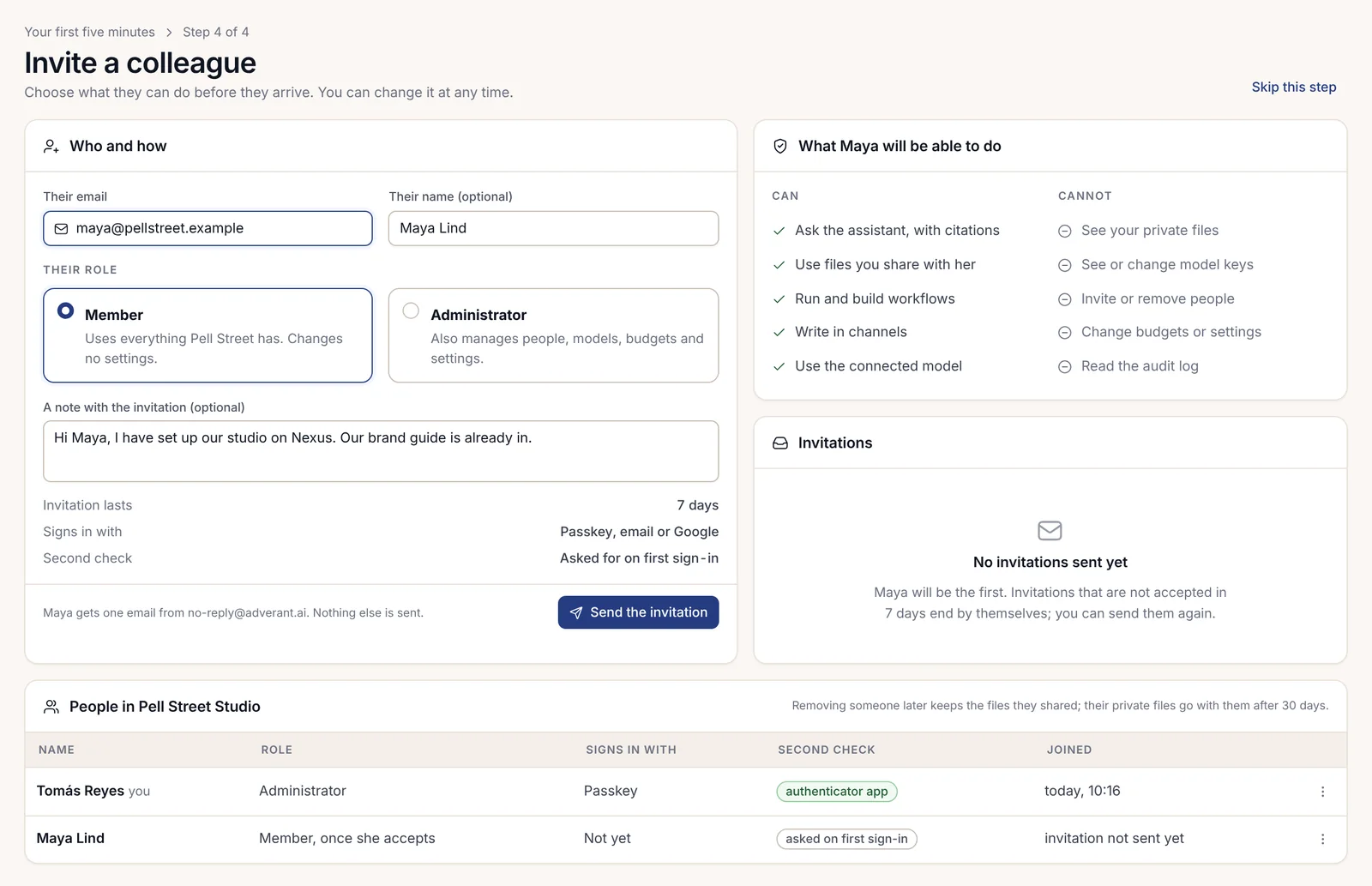
Administrator roles are never handed out by email domain. Someone whose address ends in your domain can ask to join, but that makes them a member, and an administrator decides.
The first five minutes for everyone else
When an invited person follows the link, the join page tells them who invited them and the role they'll have. For an administrator of one unit, it also says plainly what they won't see, which is the content of anyone's messages or files. They sign in with a passkey, with Google or GitHub, or through the company sign-in, and set up their second check if the organisation asks for one.
Then they land on their own Today page in the console, which is where members do their daily work: asking the assistant, team chat, files and notebooks, agents and workflows. What each person sees follows their role. Administrators also see the administration pages, and a member who opens one gets the "Not an administrator" page, which says who their administrators are.
On Adverant's cloud, a new organisation's first administrator gets a short list instead of an installer: run a sample agent on made-up data, connect your own model, add one document, invite a colleague. Most people finish in under five minutes. The first answer cites the page it came from and lists what it was read with: which files, and which model. The list goes away by itself when all four are done, or after seven days.
What to have ready on day one
- The name and email address of the first administrator, and a time agreed with IT for the claim.
- The organisation's name, its short name for links, and where its data must be kept. The last two are permanent.
- At least two other people who will be administrators.
- Your company sign-in details, or the contact in IT who manages your identity provider.
- A model: a key for a hosted provider, or the address of a model server on your own hardware.
- The licence file, if you're on Enterprise.
- The mail server details Nexus will use to send invitations.
- One real document your team would like answers from, for the first test.
- A note of who keeps the printed emergency sign-in, and where.