

Version 1.0.0-alpha.1latest
Chapter 1.2
A working day with Nexus
One working day at Harrow Port Authority, from the first look at Today to the last approval, showing what people actually do in Nexus and where each kind of work lives.
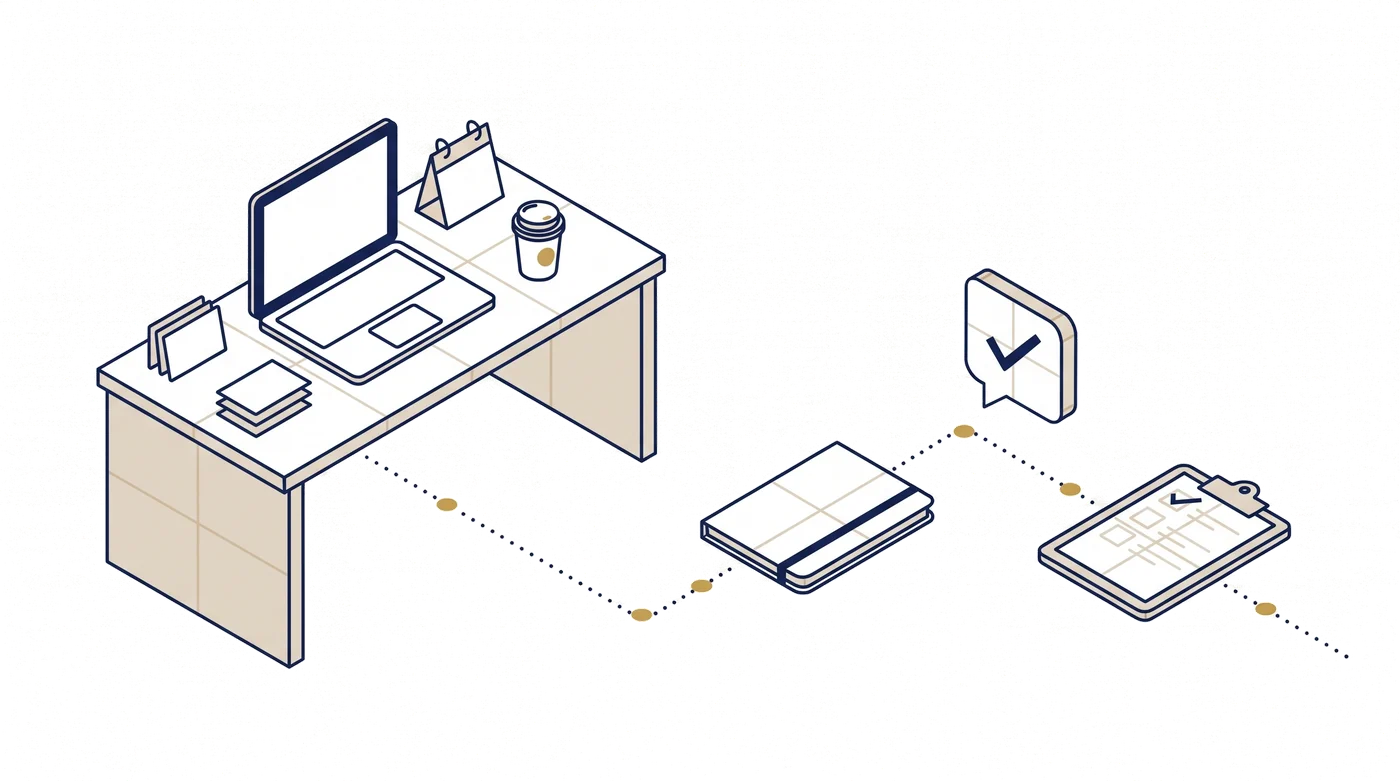
Ciara Holloway signs in at 07:40 with her passkey. She's harbour operations lead at Harrow Port Authority, which runs Nexus Enterprise on its own servers with no internet connection. The first page she sees is Today, and it's short: a mention in the berth planning channel, a workflow run waiting for her approval, and a question a colleague left for her in a thread. Three things. She can deal with all of them before the eight o'clock call.
This chapter follows Ciara through one ordinary day. It's the quickest way to see where things live in Nexus and how the pieces connect. Nothing in it needs technical knowledge, and almost all of it is the same in every edition. Where something belongs only to Enterprise or to an add-on, we say so.
The frame around everything
Every page in Nexus sits in the same frame, so it's worth knowing its parts before the day starts.
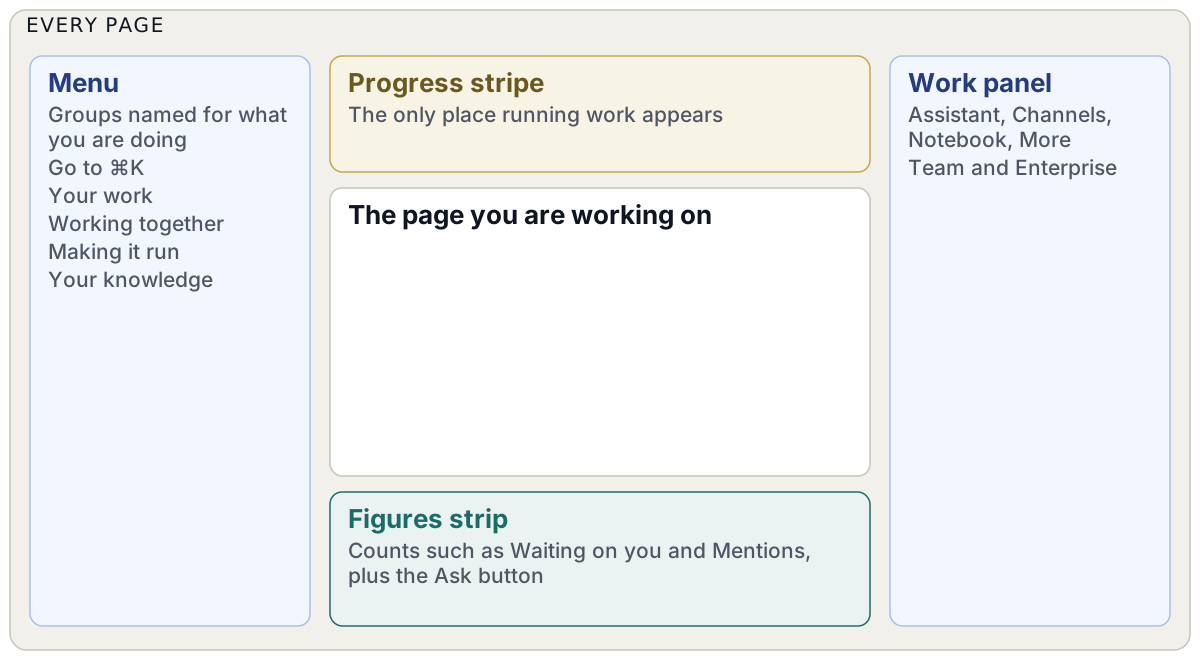
The menu down the left is grouped by what you're doing rather than by product names, under headings such as Your work and Your knowledge. At the top of the page runs a thin progress stripe. It's the only place running work ever appears: an import, a workflow, a long answer being prepared. At the bottom is the figures strip, which counts things like runs going and items waiting on you, and names the model in use. On Team and Enterprise a work panel sits on the right of every page with the assistant and your channels in it. You can ask about the record in front of you without opening anything else. On Community the assistant and channels are pages of their own.
Two keyboard shortcuts are worth learning on day one. Go to (⌘K) jumps to any page or searches everything. Ask (⌘J) asks the assistant about the screen in front of you.
There are no pop-ups that appear and vanish. Nexus doesn't use them anywhere. Outcomes show up in place, as a changed row or a plate on the page, and running work stays on the stripe until it's done. It takes a day or two to stop looking for a toast in the corner of the screen.
Today and notifications
Today is a list of what needs you, ordered by urgency with the reason in words. On Ciara's first day it was nearly empty, and each empty area said what would appear there and how to start ("Nothing is waiting on you yet"). Now it holds her mentions, the runs waiting on her approval and anything someone has asked her to look at.
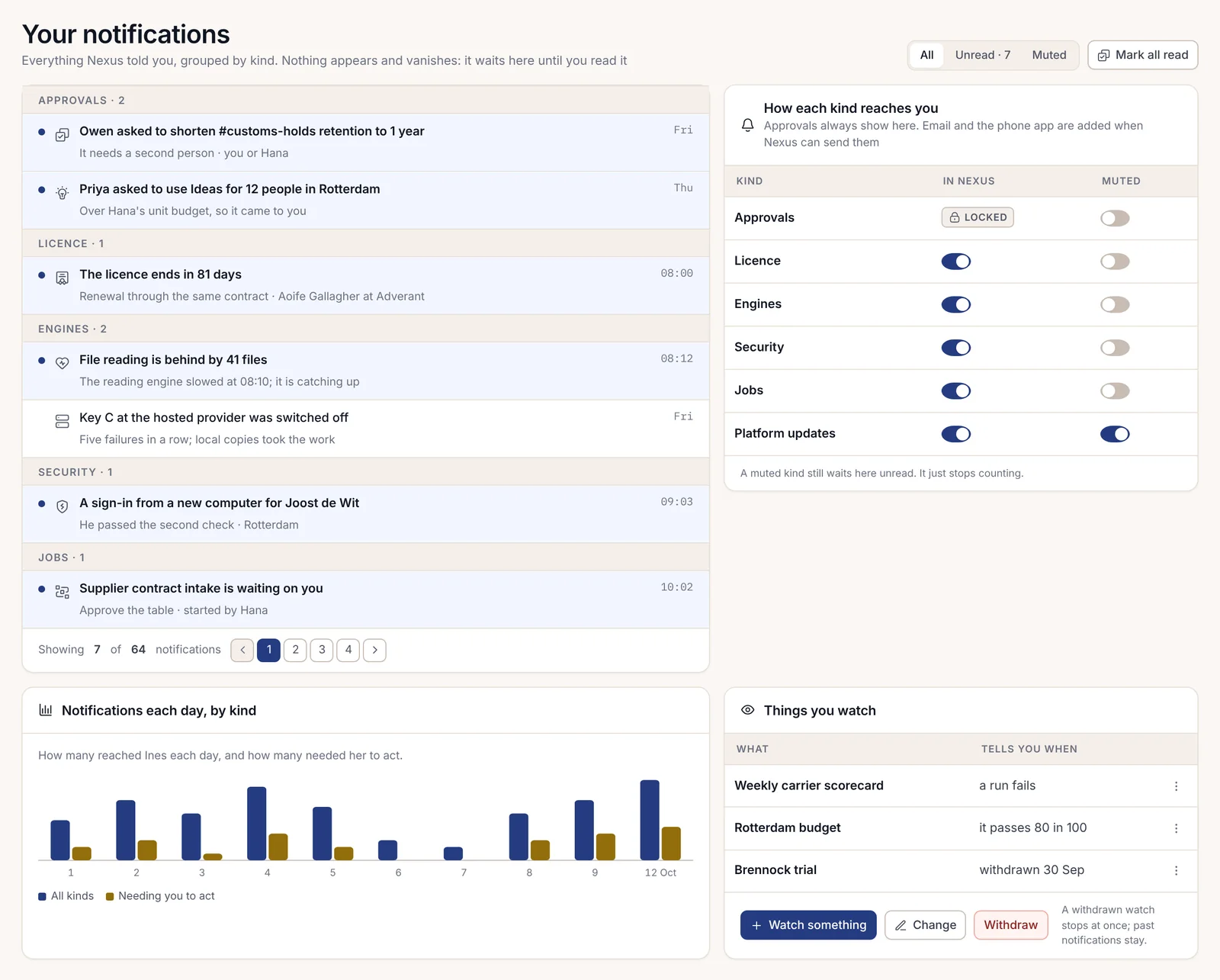
Behind the bell is a fuller inbox of notifications, grouped by kind, so approvals sit together and job alerts sit together. A notification waits there until she reads it. She can mute any kind except approvals, and a muted kind still waits unread; it just stops adding to the count. She can also have a kind sent by email or to her phone as well as shown in Nexus.
What changed since you were last here
Ciara was off yesterday. Rather than scroll back through every channel, she opens What changed, which lists everything that moved since she last signed in, newest first and grouped by kind. A survey file was replaced with a corrected version. Two workflow runs finished. A colleague answered a question she'd left in a thread. It's the catch-up a good colleague would give you over coffee, minus the coffee.
Asking the assistant
At 08:20 Ciara opens the record for the outer berths and asks the assistant, in the panel beside it, whether last month's survey changed the depth limits. The answer arrives in four sentences. Each one carries a small citation, and clicking it opens the exact page of the survey beside the answer.
Underneath sits a line headed "What this answer was read with". It lists the files and the model the assistant used. If anything was taken out before the answer reached her, because the rules say she may not see it, a plate says so. Two people who ask the same question can get different answers this way, and each of them can see why without seeing what the other saw.
The assistant runs on the model Harrow chose, on Harrow's own hardware. If no model were connected, the assistant wouldn't pretend. It would show a plate saying it can't answer and why, with a button to connect one.
Typing / in the composer opens the skills palette: things the assistant can run, grouped by what they do, such as drafting a reply or summarising a long document. Skills that can't run here are shown greyed with the reason beside them. Many buttons around Nexus carry a small gold mark for artificial intelligence (AI). Right-clicking one shows "About this button": the skill it runs and what that skill reads, and who changed it last.
Team chat and channels
The berth planning channel is where Ciara's team works through the day. A channel holds messages and threads around a pinned record, and the assistant can be asked inside a conversation. A thread opens beside its channel, so one argument can be followed from start to finish without losing the rest. Direct messages are for one-to-one conversations, and the channel search finds a past answer with the messages around it.
Every AI answer in a channel shows what it was read with, just as it does in the panel. Private details stay private even in a shared channel.
Enterprise adds the controls an organisation needs around chat: retention and legal holds on channels, exports, and guests from other firms who see only the channels they were invited to and are marked clearly. If Harrow licensed the Calls and voice add-on, a huddle could start from the channel too, with a recording notice for everyone on it.
Files and search
Mid-morning, a contractor sends 40 files for the quay wall inspection. Ciara drops them in. The upload shows on the progress stripe, and each file joins the list as it's finished. Before anything reads a file, Nexus opens it in a throwaway sealed machine with no network, so a dangerous attachment never reaches anything else. Then the right reader handles it: text, scans and tables each go to a reader built for them.
The files page shows two halves of the picture: what Harrow has, and what it's still owed. Missing papers being chased sit next to the ones that arrived, with who was asked and when. A shared viewer opens any document with a column of the facts drawn from it alongside.
Search covers messages and files as well as records and runs, with results grouped by kind. Items Ciara can't open are left out of the results and out of the counts, with no line hinting they exist. For bigger questions the knowledge graph shows how things connect around one contractor or berth, and a timeline shows what happened when.
Notebooks
After lunch Ciara opens her notebook, "Quay wall inspection, autumn". A notebook holds the papers behind a piece of work and the questions she has asked of them. She ticks which papers it may read. The notebook points to those papers and never copies them.
She asks whether the two inspection reports agree on the crack at the north corner. The answer cites a page on every sentence. When two papers disagree, both are quoted in their own words, and a compare view puts them side by side with the differences marked.
Personal notebooks are part of every edition. Sharing a notebook with read, ask or change rights comes with Team and Enterprise, and the notebook studio, which turns a notebook into slides, a one-page sheet or an audio summary, is an add-on.
Memory, and who controls it
The assistant remembers things Ciara has taught it: that she prefers short answers, which berths are hers, a reminder she set for Friday. She can see all of it on her own memory page under Teaching the assistant. It shows counts by kind, who read her memory this month (the assistant, to answer her, and skills she ran) and a choice for each place, such as the panel or team chat.
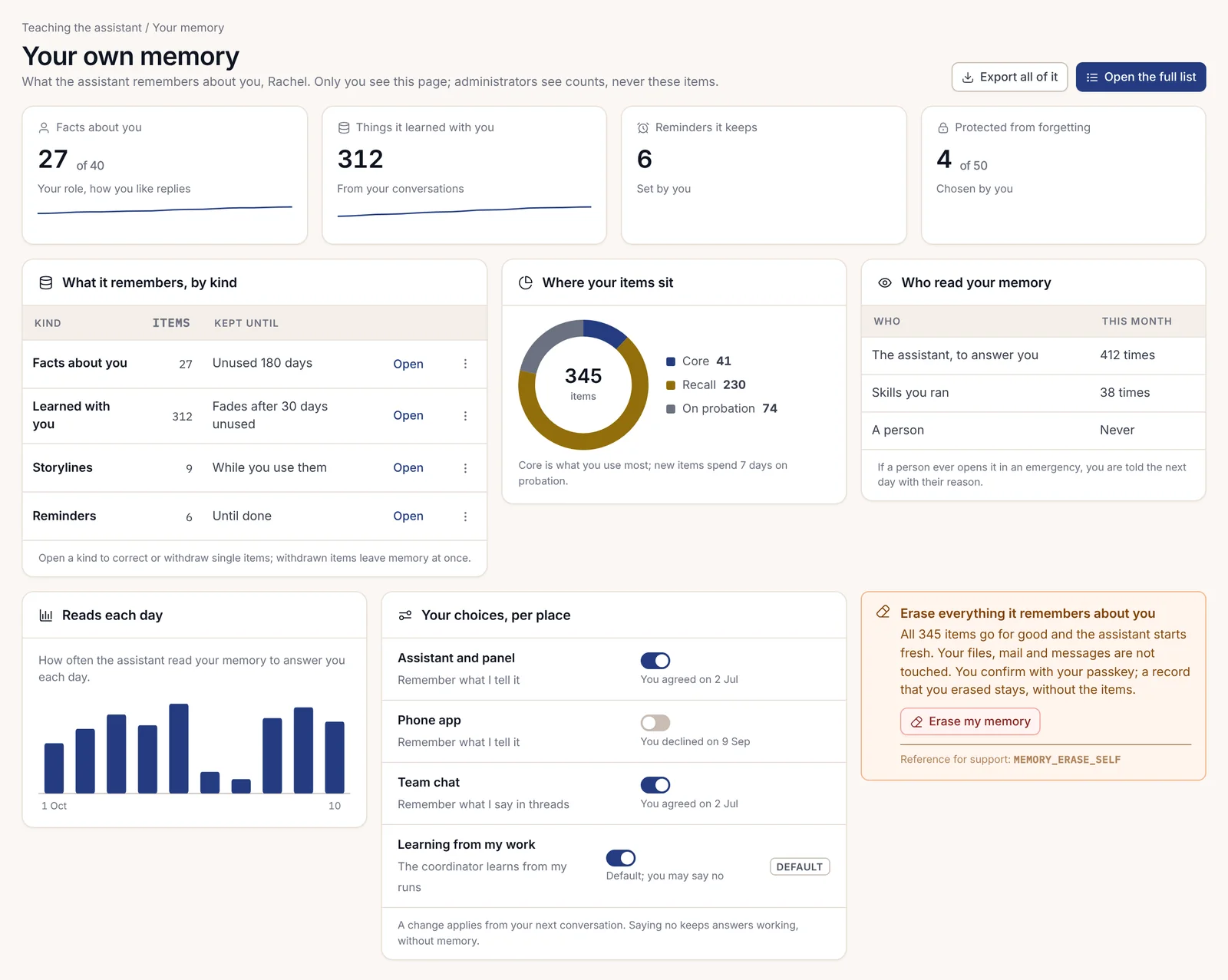
She can export everything it keeps or erase it all with her passkey, and a record that she erased it stays behind without the items. Saying no to memory in a place keeps answers working there, just without memory. If anyone ever opened her memory in an emergency, she would be told the next day, with their reason.
Agents and workflows
Harrow's operations team runs a handful of workflows. One builds the weekly berth schedule check from the port's booking records every Monday at 07:00, and the schedule page says exactly that, in words. The runs list shows what ran and who started it, with its state and how long it took. Opening one run shows each step in turn, and a failed run explains itself on a plate: what failed and why, and what to do next.
Workflows are put together on screen as steps on a canvas, each with its settings in a card beside it. Some steps are marked to wait for a person. Agents work in a similar way, but they keep going on their own within limits their owner set. Every agent has a named owner and a budget, and none starts above "ask first". Ciara has two agents of her own, and the My agents page shows what each did today, step by step.
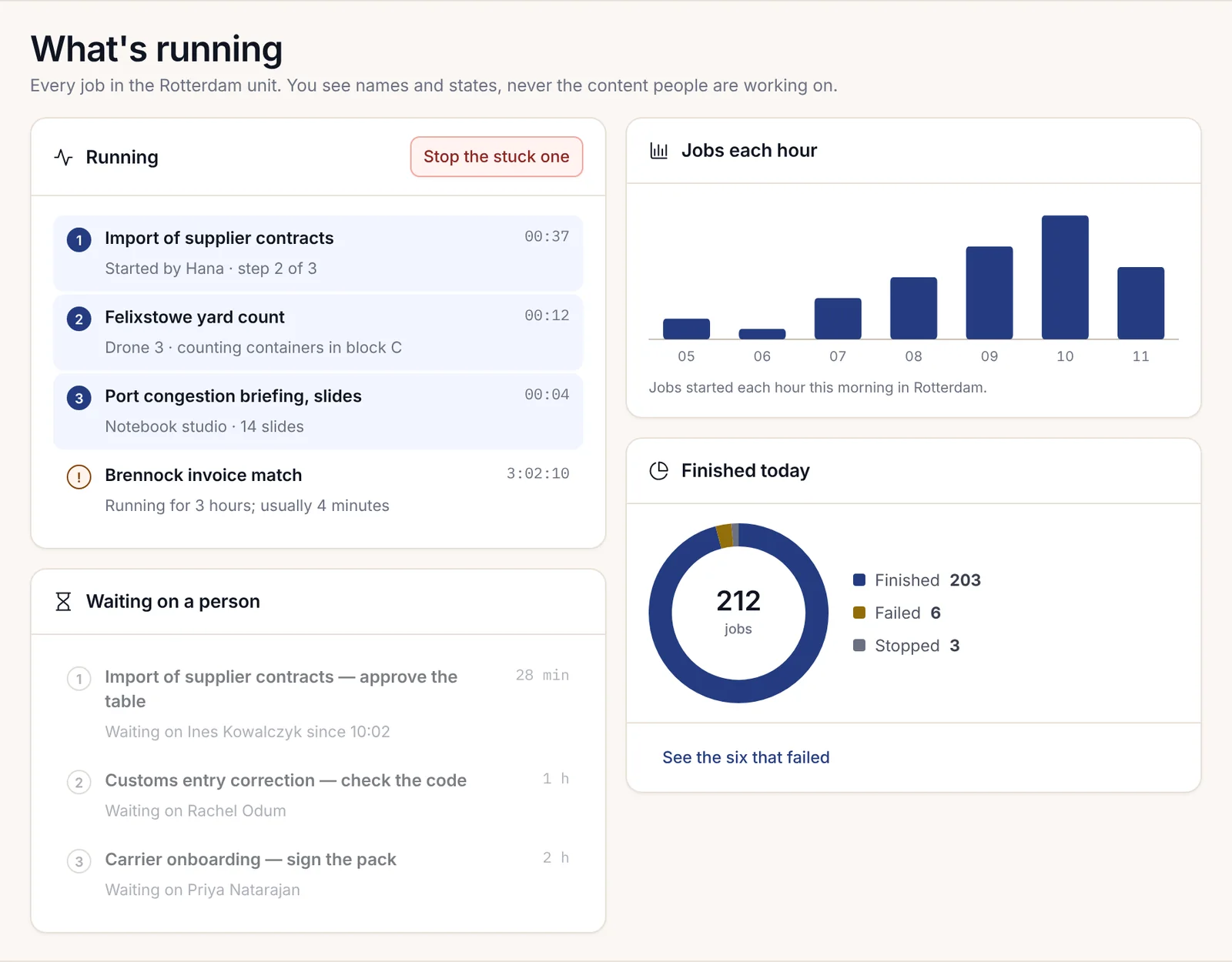
The What's running page, opened from the progress stripe, lists everything running now, what's waiting on a person and what finished today. Ciara can approve or stop her own jobs from there.
Waiting on a person
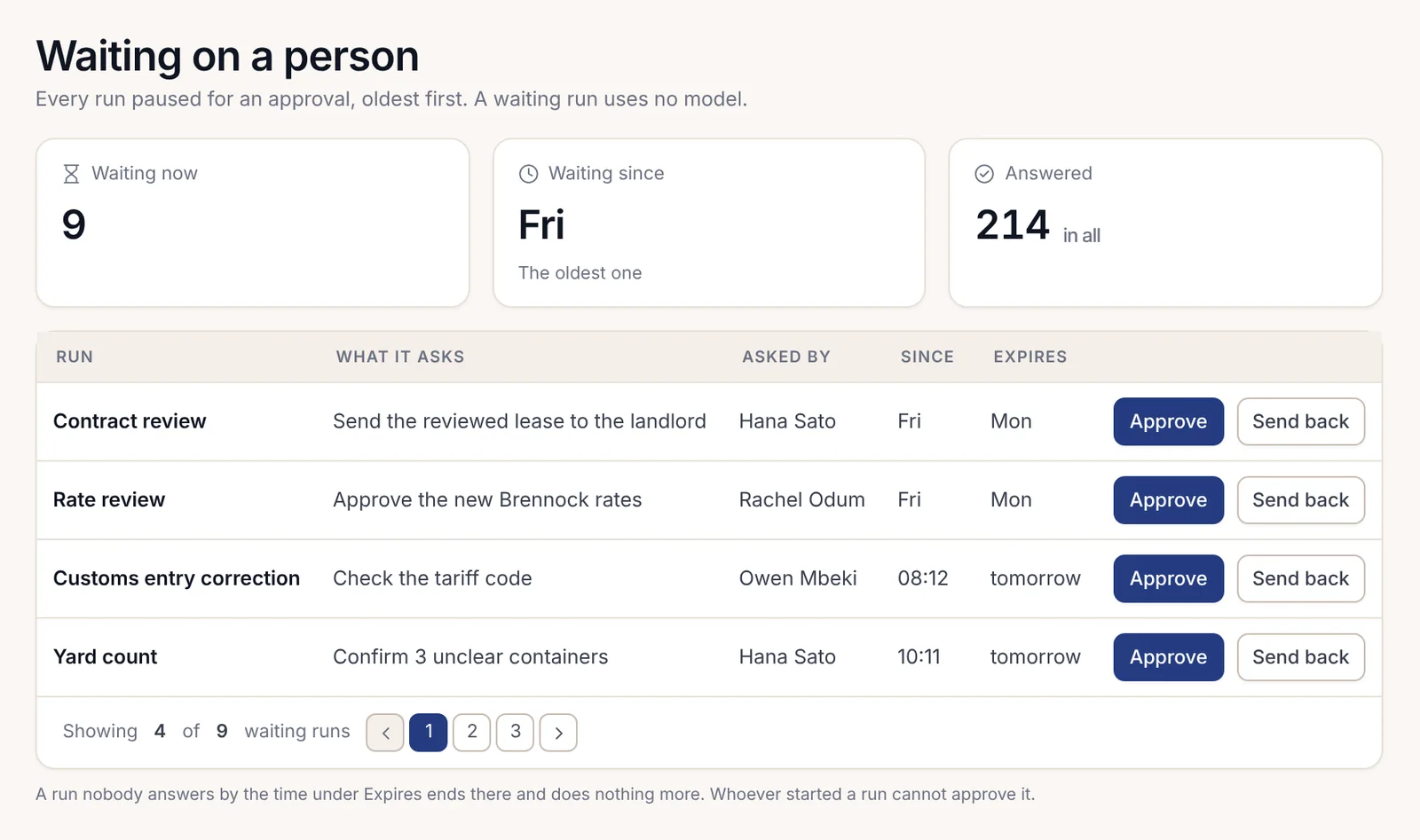
At 15:30 the berth schedule run pauses at the step marked for her. Waiting on a person lists every task waiting for Ciara, oldest first. Each one says what it asks and who asked, and how long it has waited. She reads the proposed schedule and approves it. The run carries on. Had she sent it back, she'd have needed to write a reason.
Nothing waits silently. Rules can alert the right person when a task has waited too long and hand it to another approver if nobody answers. And nobody approves a run they started themselves.
Away from the desk
Ciara leaves at five. On the bus she checks Today on her phone, where the web console fits a phone screen and the panel slides up from the bottom. If the connection drops, a plain plate says when it was lost and what still works. The native phone apps, which add approvals with a face or fingerprint check, are covered in chapter 1.10, Away from the desk.
The day had no dashboards to tend and no separate AI tool to copy things into. It was her work, in one frame, with the sources showing.