

Version 1.0.0-alpha.1latest
Chapter 1.10
Away from the desk
Using Nexus on a phone, from the console's phone layout in every edition to the native iPhone and Android apps. Covers what works without signal and how a company manages the phones.
A claims handler from Larkfield & Vane is standing in a storm-damaged house with no signal. On her phone, the claim visit screen sorts everything into three piles. Fourteen photographs and her notes are saved on the phone and will join the claim later. Her repair estimate and a change to the reserve are queued as suggestions for the office to decide. And three things are shown as rows she can't press at all: signing anything off, checking who gets paid, and starting a legal deadline. Each row says why.
That screen sums up how Nexus treats phones. A great deal of work can happen away from the desk, and some of it waits for a connection on purpose. This chapter covers the two ways to use Nexus on a phone and what works offline. It ends with how your company keeps the phones in line.
The console on a phone, in every edition
Every edition, Community included, gives you the web console in a phone's browser. The menu folds away, the assistant opens as a sheet from the bottom of the screen, and the pages rearrange to fit.
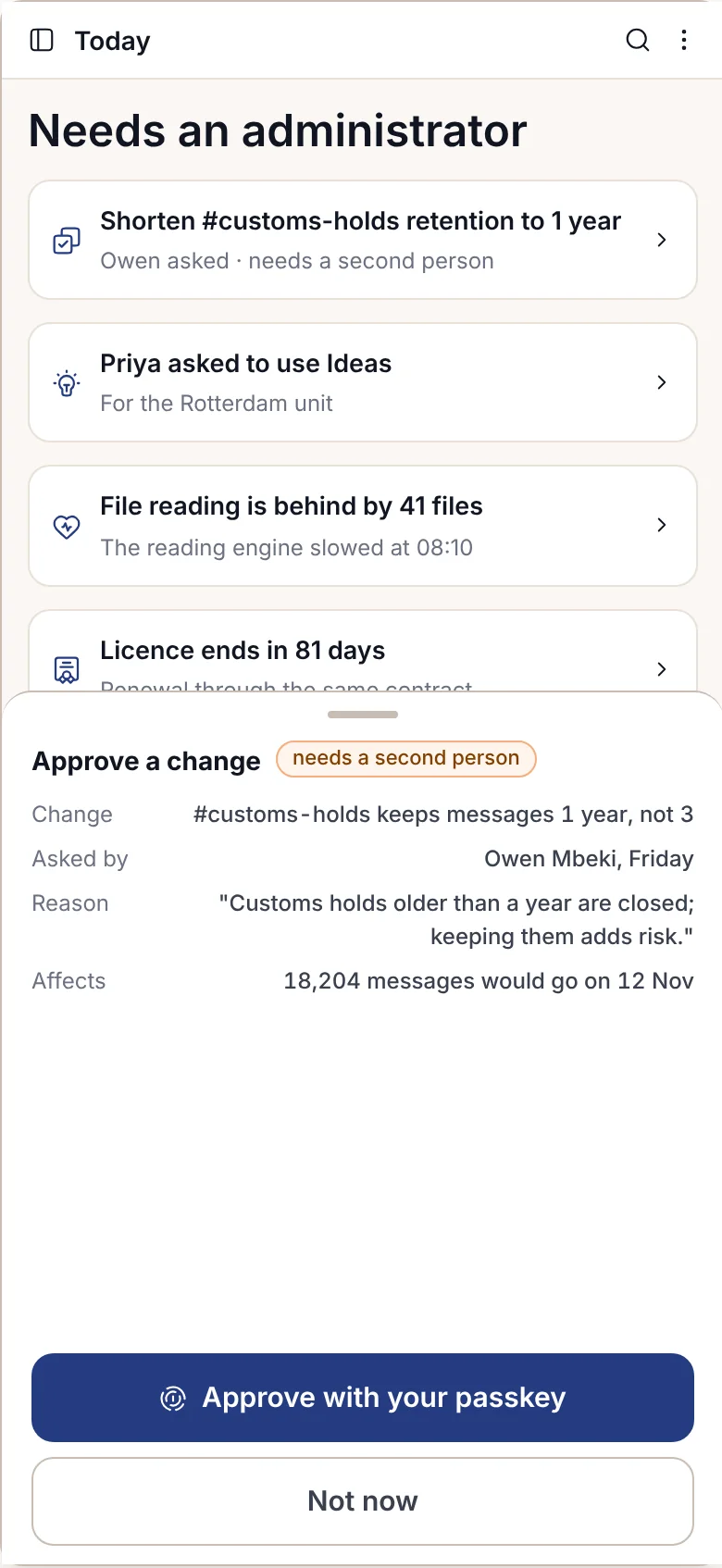
For an administrator, the phone layout is for things that can't wait. From a phone you can approve a change with your passkey, stop an agent, freeze sharing outside the company and read warnings. Full administration stays on a computer, where a change can be previewed before it's saved.
Community has no native app. If someone points the app at a Community installation, it refuses with NOT_IN_YOUR_PLAN and sends them to the web console instead.
The iPhone and Android apps
The native apps come with the Mobile apps add-on to Enterprise. There's one public app, called Adverant Nexus, in both stores. Companies that don't allow public stores can get it as a private app through Apple Business Manager or Managed Google Play. Air-gapped and defence sites install a build through their own device management only.
Signing in uses the phone's own passkey prompt. Company sign-in opens in the phone's browser, never inside the app. If your company manages the phone, the address of your installation is already filled in, marked "Set by your company". The phone then makes its own key and joins your list of devices. After 15 minutes idle the app asks for your face or fingerprint, which works with no signal; after three failed tries it falls back to the passkey.
The bottom bar has four items: Today, Conversations, Ask and More. Here's what that opens up:
| Area | On the phone |
|---|---|
| Today | Lists what needs you, with the reason for each in words. The home-screen widget shows counts only. |
| Ask | Answers with citations and the list of what it read. You can dictate a question, or send in a photo from the camera. A draft the assistant writes is only a draft until you send it yourself. |
| Conversations | Holds your channels and threads, with shared channels labelled. Retention and legal holds set on the desktop apply on the phone too. |
| Approvals and signing | Ask for your face or fingerprint every time. Signing works only in the open app, never from the lock screen, and turning something down asks for a reason. |
| Search | Finds only what you may open, and leaves the rest out of the counts as well as the results. |
| Capture | Uses the phone's own document scanner and saves straight to a folder. |
Under More sit the rest. A notebook opens on the phone with its papers and an answer that cites a source for every sentence, and tapping a citation opens the page it came from. When it's your turn to judge in an idea run, two ideas arrive without their authors' names, and you pick one, choose neither, or say you can't tell. Mail that needs a home is listed with a suggested record to file it under, and a reply goes through the same checks before it leaves as it would on the desktop. What's running opens the progress stripe as a sheet: running, waiting on a person, and finished today. A long job can also be followed from the lock screen, as a Live Activity on iPhone or an ongoing notification on Android, showing only its name and step, and a stuck job of your own can be stopped there after a face or fingerprint check. Whoever is on call can trace one request between agents, hop by hop with timings, read-only.
Some of those need their own add-on as well. Signing a ruling in a decision room needs the Decision rooms add-on, for example.
Notifications that carry nothing
A notification from Nexus says that something is waiting and nothing more. Your company sets how much the lock screen may show. At the strictest setting it's "Something needs you in Nexus", and you open the app to see the rest.
Apple and Google carry only an encrypted envelope with a key reference, never the content. The phone decrypts the notification itself. How the envelope travels depends on how Nexus runs: through Adverant's relay for a connected installation, through your company's own push setup, or by site paging on an air-gapped site.
What works with no signal, and what never does
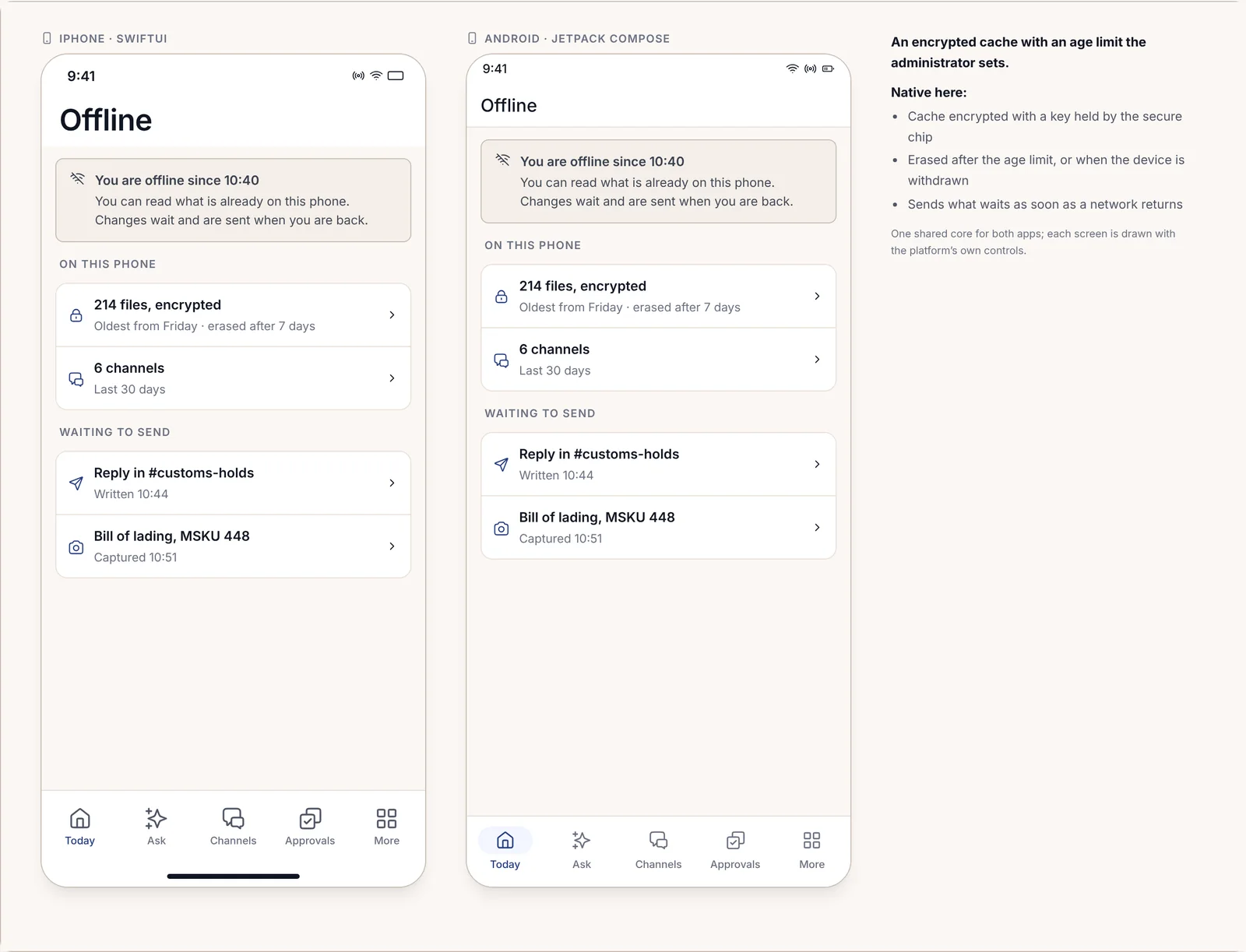
The app keeps an encrypted copy of what you need on the phone. The key is held by the phone's secure chip, and the copy is erased after an age limit your administrator sets, for example seven days. When you're offline, the app says since when, shows how old its copy is, and lists what's waiting to send.
Every field on an offline screen belongs to one of three kinds, and the screen shows which:
- Saved on this phone and joined up later. Notes, photos and readings. They go into the record as soon as there's a connection.
- Sent as a suggestion the office decides. An amount, a finding or a decision. A suggestion never goes straight into the record: when it arrives, the server runs the same authority checks as it would at a desk, and a person in the office decides.
- Not possible out here. A signature, a seal, or a check against a list such as sanctions. These are drawn as rows with their reason, never as buttons.
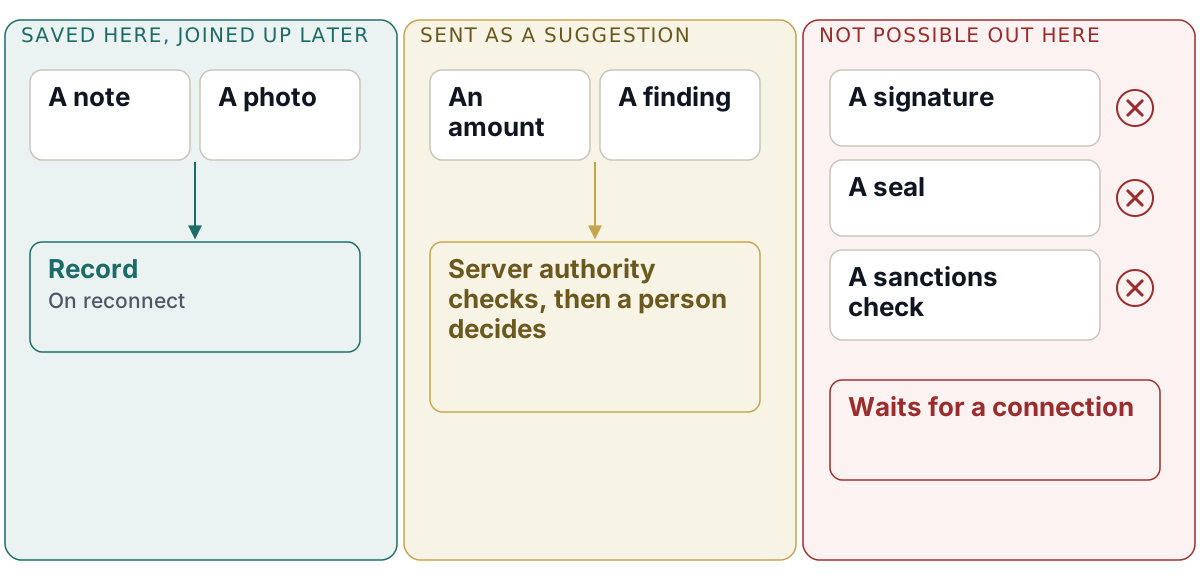
This is deliberate, and it costs something. A field worker can't close a claim or release a hold from a basement, however urgent it feels. Approvals and signatures need a connection, so that they're recorded at once and checked against the latest state.
Company device management
Most companies already manage their phones, and the app fits into that. It reads the managed settings your device management sends, such as the address of your installation. Microsoft Intune and Workspace ONE are both supported, and the company can remove the app's data remotely.
Administrators set the device rules in Nexus as well:
- what a phone needs before it can open Nexus, such as a screen lock, a minimum app version and a check that the phone and the app are genuine;
- whether screenshots are blocked on sensitive screens, and whether files may be shared outside the company;
- how long the offline copy may stay on the phone.
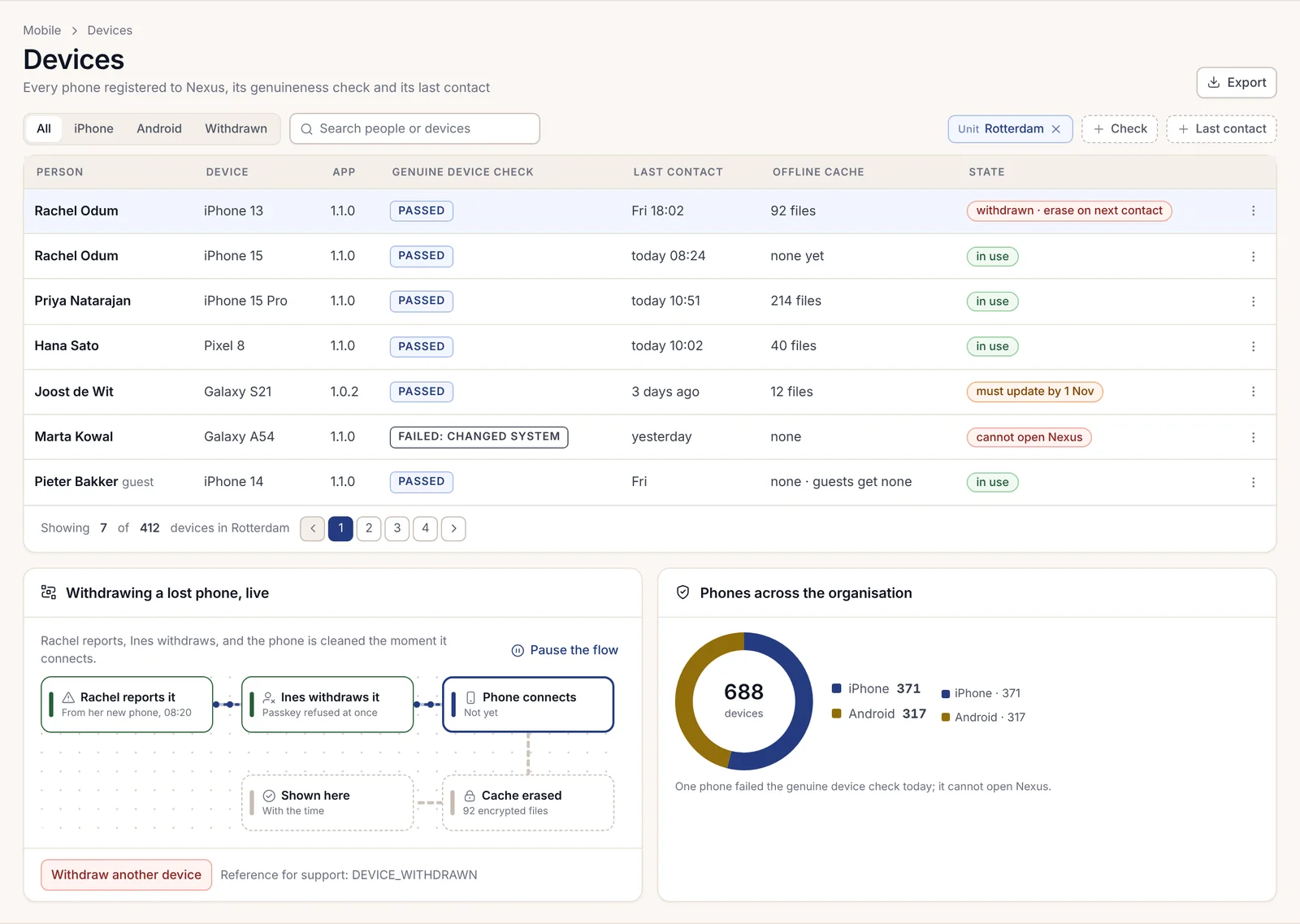
Each rule shows where it came from, and loosening one needs a second person. When a phone fails its genuineness check, the app says so with DEVICE_CHECK_FAILED and names who can help. When a rule blocks copying, the plate reads COPY_NOT_ALLOWED_HERE.
The company manages the app's data only. It can't see your photos or messages, and the registration screen says so. Administrators see app versions and devices as counts, never what anyone does in the app.
When a phone is lost, it's withdrawn in one step, by its owner or by an administrator. Its passkey is refused at once, and its encrypted copy is erased the next time it connects. If someone switches the lost phone on later, it shows that it was reported lost, with DEVICE_WITHDRAWN.
Pack phone screens
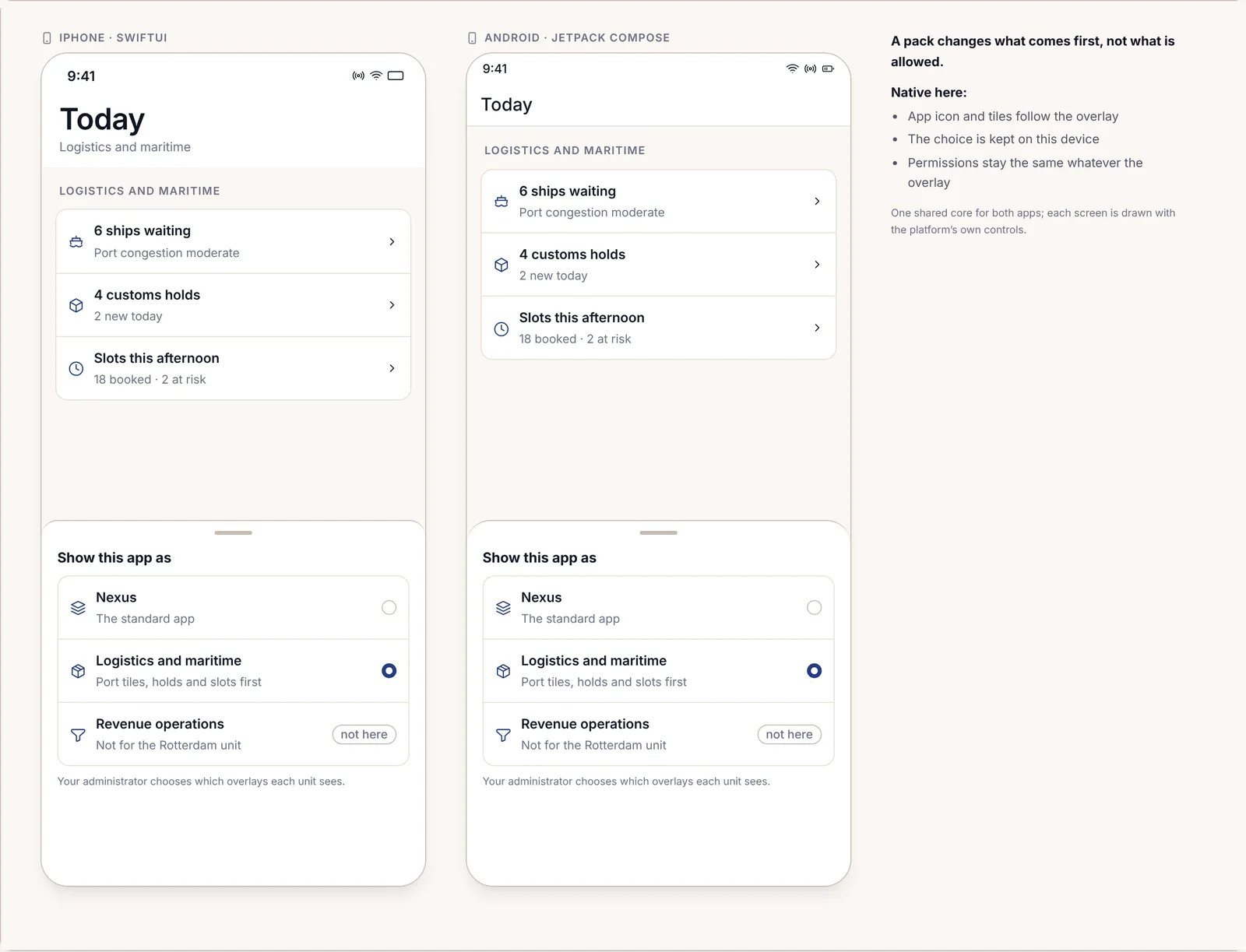
A domain pack can add its own phone screens, called an overlay. An overlay reorders the app around the pack's work, putting port tiles and customs holds first for a logistics team, for example. It never widens what a person may see or do. Administrators choose which overlays each unit gets, and anyone can switch back to the standard app.
Each pack decides what belongs on a phone and what doesn't:
| Pack | On the phone |
|---|---|
| Insurance | Claim visits with photos that wait up to 72 hours for signal, and payment approvals within a person's limit. |
| Banking and payments | Credit approvals within an officer's limit. Screenshots are blocked on approval screens. |
| Healthcare | Ward-round summaries and handovers. Notifications show the ward and bed, never the patient's name, and shared ward phones sign out after ten idle minutes. |
| Life sciences | Site-monitoring visits and adverse-event intake. An adverse event saved offline raises a warning after four hours, because its reporting clock starts when it arrives. |
| Defence and security | Field reports on accredited rugged phones, which wait up to fourteen days until the phone docks. |
| Logistics and maritime | Yard and berth inspections; releasing a customs hold needs a person and a passkey. |
| Capital markets and asset management | The morning research briefing, downloaded at 06:30, research release approvals and surveillance alerts. Never orders, and calls made from the app are recorded like desk calls. |
| Government and public sector | Offline housing inspections and field visits with located photos, and signed briefings for leaders that are read and signed but not edited. Captures are stored only in the national cloud. |
| Critical infrastructure and energy | Offline pylon and substation inspections, incident first reports that start the reporting clocks, and drone findings a person reviews. It never switches anything, and lone workers check in hourly. |
| Legal and professional services | Time capture, matter updates and approvals, never privileged files. Notifications show a matter number only. |
A pack's phone screens open only with both the pack and the Mobile apps add-on in your licence. Chapter 1.7, Domain packs and verticals, lists what each pack needs.